Understanding the LinkedIn Pixel and Its Function
The LinkedIn Insight Tag, widely known as the LinkedIn Pixel, is a small piece of JavaScript code that site owners install on their websites to track key metrics such as conversions or email sign-ups tied to LinkedIn users who saw their site on the platform and later visited it. This tool is essential for measuring the impact of LinkedIn advertising efforts, allowing businesses to connect ad campaign data with user behavior on their own sites. According to LinkedIn, the tag is lightweight and designed to load asynchronously, meaning it does not significantly impact website performance.
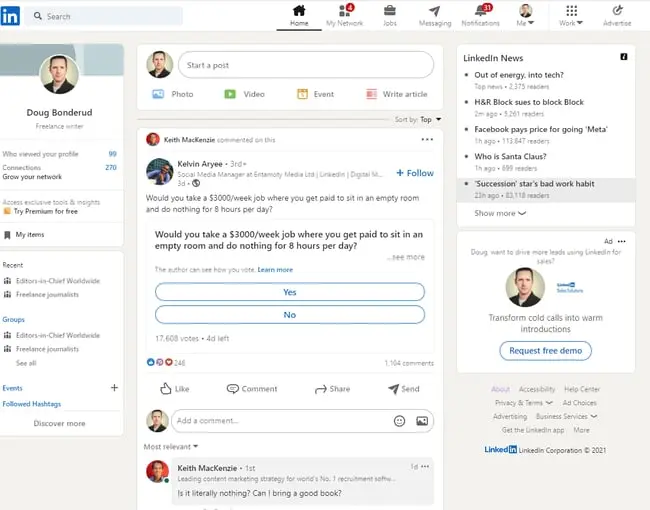
The Insight Tag works by creating a cookie in the browser of any website visitor who clicks on a LinkedIn ad and lands on your site. It tracks their actions and allows you to use data from their LinkedIn profile for further follow-up. This process helps you understand how your ads are performing and enables you to follow up with LinkedIn users to drive increased conversions.
How the Pixel Tracks User Behavior
The LinkedIn Pixel acts as a beacon that keeps sight of users after they click through to your website. It provides a detailed report that helps you measure the impact of your campaigns. By tracking user actions, you can determine which ads are driving traffic and which are not. This information is crucial for refining your marketing strategy and improving your return on investment.
Why Transparency Matters
Always be upfront about your use of the LinkedIn Pixel on your site. While user agreements with LinkedIn provide the legal framework for using this tool without requiring users to opt-in on every webpage, transparency is key. Visitors may ask questions about where you obtained their information, and being honest about your data collection practices can help build trust. This approach ensures that post-Pixel contacts go as planned and that users feel comfortable with your marketing efforts.
Practical Steps for Data Compliance
To maintain a high standard of trust, consider adding a clear privacy policy update that explicitly mentions the use of tracking tags. Ensure your cookie consent banner, if applicable in your region, includes language about third-party tracking pixels. Being proactive prevents confusion and helps maintain a positive brand reputation while you gather necessary performance data.
The Strategic Value of LinkedIn Analytics
Data drives marketing success. If website marketing and sales teams understand where visitors are coming from and what they are looking for, they are better equipped to discover where campaigns are generating interest and where they are falling short. Basic website engagement metrics, such as the number of unique visitors, newsletter sign-ups, and purchases, provide a generalized view of success across all platforms. However, these metrics do not tell marketing teams if LinkedIn-specific ads are effective.
The LinkedIn Pixel makes it possible to segment traffic and pinpoint target market segments. This segmentation allows you to determine where visitors are coming from, enabling your teams to see how many click-throughs and referrals come from LinkedIn. This level of detail is critical for designing ads and promotions that resonate with the business-focused LinkedIn user base.
Segmenting Traffic for Better Insights
When it comes to drilling down and pinpointing target market segments, tools such as the LinkedIn Pixel are critical. The social nature of LinkedIn skews toward business and employment, which means that marketing campaigns must take this perspective into account. General data about conversions and customer contacts offers a broad view of success, but it does not provide the specific insights needed to refine LinkedIn campaigns.
Optimizing Campaigns with Data
The LinkedIn Pixel provides detailed reports that help you measure the impact of your campaigns. By analyzing this data, you can identify which ads are driving traffic and which are not. This information allows you to refine your marketing strategy and improve your return on investment. You can also use this data to tailor your marketing efforts to better meet the needs of your target audience, ensuring that your campaigns resonate with the business-focused LinkedIn user base.
Common Pitfalls in Data Analysis
A common mistake is failing to set up conversion tracking alongside the base pixel. Without defining specific conversion events—like a form submission or a whitepaper download—you only see traffic, not true value. Ensure you map your business goals to specific URL destinations or button clicks to get the most out of your LinkedIn conversion tracking efforts.
Step-by-Step Installation of the LinkedIn Insight Tag
Installing the LinkedIn Insight Tag on your website is a straightforward process. Follow these steps to get the tag up and running:
- Sign into your Campaign Manager.
- Select your Ad account.
- Click on the Account Assets dropdown.
- Select ‘Install my Insight Tag’.
- Decide how you will install the tag.
- Copy the tag.
- Add the code to every page.
- Check that the process worked.
Signing into Campaign Manager
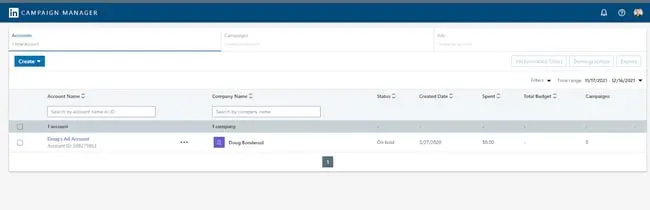
First, sign into your Campaign Manager. To do this, head to your personal or company LinkedIn profile and look for Advertise in the upper right-hand corner. Click it, and you will be taken to the Campaign Manager page. From here, you can manage your ad accounts and install the Insight Tag.
Selecting Your Ad Account
Next, select your ad account. If you have more than one ad account, make sure you are selecting the one that is associated with the right campaign and website. This ensures that the Insight Tag is installed correctly and that your data is tracked accurately.
Accessing Account Assets
Once you have selected your account, look for the Account Assets tab on the right-hand side of the top navigation menu. Click it to get the next dropdown menu and select Insight Tag. This will take you to the page where you can install the tag.
Installing the Insight Tag
If you do not have any Insight Tags installed, click on the blue button that says Install my Insight Tag. This will initiate the installation process and provide you with the code you need to add to your website.
Choosing Your Installation Method
You have three options when it comes to installing your tag: you can do it yourself, send the tag to a developer, or use a tag manager such as Google, Adobe, or Tealium to install the tag. Each method has its own advantages, so choose the one that best fits your needs and technical expertise.
Copying and Adding the Code
If you decide to do it yourself, click I will install the tag myself and then copy the code in the code box that appears. Next, paste the Insight Code tag on every page in your domain. LinkedIn recommends pasting it just above the closing HTML
tag in the global footer. This ensures that the tag loads correctly on every page.Verifying the Installation
Finally, head back to the Insight Tag page in your Campaign Manager and make sure your domains are listed. As noted by LinkedIn, this could take anywhere from a few minutes up to 24 hours. Once your domains are listed, you know that the tag has been installed correctly and is ready to start tracking data.
Maximizing the Potential of the LinkedIn Pixel
The LinkedIn Pixel makes it possible to connect ad campaign performance with LinkedIn-referred traffic. This connection allows you to better understand how your ads are performing and to follow up with LinkedIn users to help drive increased conversions. By using the data provided by the Insight Tag, you can refine your marketing strategy and achieve better results.
Connecting Ad Performance with User Behavior
The LinkedIn Pixel connects ad campaign performance with LinkedIn-referred traffic. This connection allows you to see how your ads are performing and to follow up with LinkedIn users to drive increased conversions. By analyzing this data, you can identify which ads are driving traffic and which are not. This information is crucial for refining your marketing strategy and improving your return on investment.
Following Up with LinkedIn Users
The LinkedIn Pixel also allows you to follow up with LinkedIn users to help drive increased conversions. By using data from their LinkedIn profile, you can tailor your follow-up efforts to better meet their needs. This personalized approach can help build trust and improve your conversion rates.
Optimizing for Future Campaigns
By using the LinkedIn Pixel, you can refine your marketing strategy for future campaigns. The data provided by the Insight Tag allows you to identify which ads are driving traffic and which are not. This information can be used to refine your targeting and messaging, ensuring that your campaigns resonate with your target audience. With the LinkedIn Pixel, you can take your marketing efforts to the next level and achieve better results.

The LinkedIn Pixel is a powerful tool for measuring the impact of your LinkedIn advertising efforts. By installing the Insight Tag on your website, you can track key metrics and refine your marketing strategy for better results. Whether you are a small business or a large enterprise, the LinkedIn Pixel can help you achieve your marketing goals and drive increased conversions. Consistent monitoring and iterative testing based on the data provided will ensure your LinkedIn ad account remains highly effective over the long term.


