Most of us treat Google as a simple suggestion box. We type a few words, scan the first page of results, and hope for the best. It works well enough for casual browsing, but it falls short when you need precise information. Whether you are researching competitors, verifying data, or looking for a specific technical document, basic queries often return noise rather than signals.
You can change that dynamic without learning complex code. Google has a set of built-in operators and commands that act like filters. These tools allow you to control exactly what the search engine shows you. By using them, you turn a general search into a targeted investigation.
We have compiled thirty-one of the most useful advanced search tips. Some of these are quick tricks for daily tasks, while others are powerful commands for deep research. The goal is not just to find results, but to find the right results faster.
Mastering Basic Query Operators
Basic operators form the foundation of an effective search strategy. They allow you to control how Google interprets your keywords, ensuring that the engine matches your intent precisely rather than guessing at it. When you understand these fundamental commands, you stop fighting the algorithm and start directing it.

The most common starting point is the explicit phrase search. If you are looking for a specific concept or quote, wrapping your terms in double quotes tells Google to look for that exact sequence of words. For example, searching for “inbound marketing” ensures that every result contains those two words together, in that order. Without the quotes, Google might return pages that mention “inbound” and “marketing” separately, which often dilutes the relevance of your results.
Exclusion is just as important as inclusion. When a keyword is broad, it often brings up irrelevant results that clutter your screen. You can remove these distractions by placing a minus sign directly in front of the word you want to exclude. If you are researching marketing strategies but want to avoid paid advertising content, you would search for inbound marketing -advertising. This simple operator cleans up your results instantly, saving you from sifting through pages that do not apply to your specific needs.
Sometimes you need to cast a wider net, looking for pages that contain one term or another. The OR operator handles this perfectly. It is important to note that the operator must be capitalized for Google to recognize it. Searching for inbound marketing OR advertising will return results that contain either phrase, allowing you to compare different approaches side by side. This is particularly useful when you are exploring multiple variations of a topic or checking for synonyms.
Targeting Specific Page Elements
Beyond basic keywords, you can instruct Google to look for terms in specific parts of a webpage. This level of granularity is essential when you need to verify how a topic is treated structurally by a site. It helps you distinguish between pages that merely mention a term in passing and those that are fundamentally about it.
If you want to ensure that your keywords appear in the main body of the text, use the allintext: operator. This command forces Google to look for all your specified terms within the page content, ignoring the title, URL, and meta data. For instance, allintext:vermont ski house lake will find pages that discuss these elements in the article text itself. This is useful for finding detailed reviews or descriptive content rather than just landing pages.
You can also target the title of a page using allintitle:. When you search for allintitle:wine club, Google returns pages where both “wine” and “club” appear in the HTML title tag. Since the title tag is a strong indicator of a page’s primary topic, this operator helps you find highly relevant articles or product pages quickly. It is a powerful way to filter out pages that might have your keywords in the footer or sidebar but are not actually about your subject.
For a mixed approach, you can combine these operators. Using intitle: with a standard keyword allows you to find pages where one term is in the title and another is in the body. For example, flu shot intitle:advice finds pages that are clearly about advice (as indicated by the title) and also discuss flu shots in the content. This hybrid method gives you the best of both worlds: structural relevance and content depth.
Navigating Websites and URLs
Sometimes you know exactly where you want to look, but the website itself lacks a good search function. Google can act as a search engine for specific domains, allowing you to dig into their content without browsing manually. This is a valuable skill for researchers and marketers who need to audit competitor content or find archived information.
The site: operator is your primary tool here. By typing site:www.smallbusinesshub.com "inbound marketing", you restrict your search to that specific domain. This is incredibly useful when a site’s internal search is broken or limited. You can find every mention of a specific topic across their entire blog, news section, or documentation pages. It turns any large website into a searchable database.
If you want to find websites that are similar to one you already know, use the related: operator. Searching for related:visual.ly tells Google to find sites with similar content, audience, or structure. This is an excellent way to discover new resources, competitors, or inspiration in a specific niche. It leverages Google’s understanding of web topology to surface relevant alternatives that you might not have found through keyword searching alone.
You can also look for pages that link to a specific URL using the link: command. While this data is not as comprehensive as dedicated backlink analysis tools, it provides a quick snapshot of who is citing a particular page. Searching for link:buzzfeed shows you some of the sites that have linked to BuzzFeed’s content. This can be useful for understanding the context in which a piece of content is shared or for identifying potential partnership opportunities.
Advanced Text and Data Searches
As you move beyond basic operators, you can start using Google to perform tasks that go beyond simple information retrieval. These advanced features allow you to search for synonyms, definitions, and specific file types, turning the search engine into a multifunctional research tool.
Finding synonyms and related terms is easy with the tilde operator ~. When you search for "inbound marketing" ~professional, Google includes results that contain words similar to “professional,” such as “expert,” “specialist,” or “skilled.” This broadens your search without requiring you to manually list every possible synonym. It is particularly helpful when you are unsure of the exact terminology used in a specific industry or context.
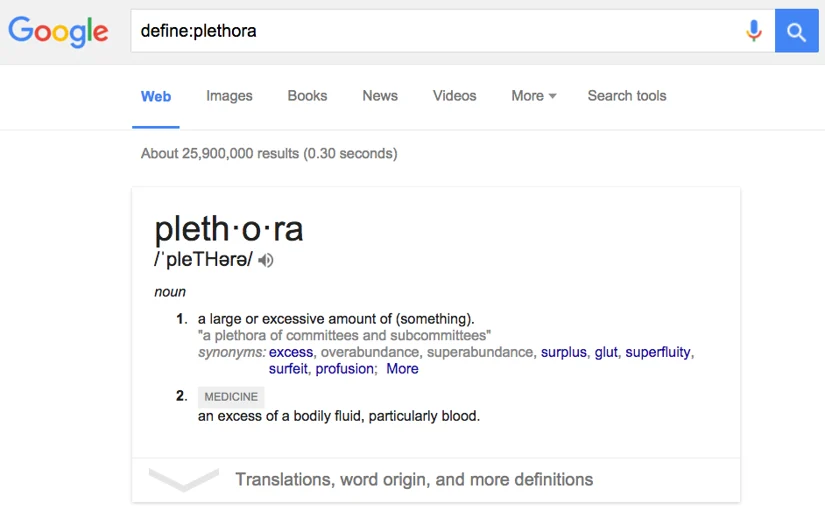
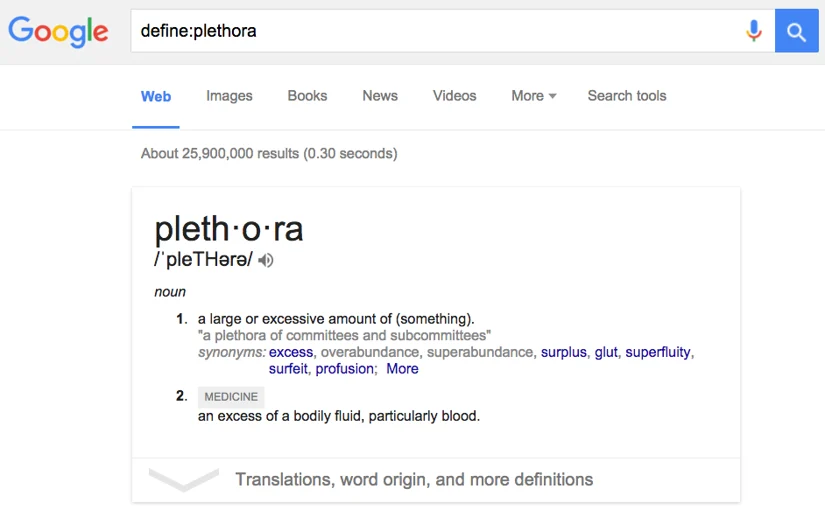
Need a quick definition? You do not need to open a dictionary app. Typing define:plethora pulls up the definition, pronunciation, and usage examples directly in the search results. This is a time-saver for writers, students, and anyone who encounters unfamiliar terms during research. It keeps you in your workflow without the distraction of switching tabs.
Wildcards are another powerful tool for incomplete information. If you remember part of a phrase, song lyric, or quote but have forgotten a word or two, you can use an asterisk * as a placeholder. Searching for much * about nothing helps you find the complete phrase “Much ado about nothing.” This is useful for recalling specific details when your memory is fuzzy, allowing Google to fill in the gaps.
You can also search for specific file types using the filetype: operator. If you are looking for PowerPoint presentations, PDF reports, or Excel spreadsheets, you can specify the format. For example, "inbound marketing" filetype:ppt returns only PowerPoint files. This is invaluable for finding templates, academic papers, or official reports that are often buried in standard web search results. It ensures that the results you get are in the format you need, saving you from downloading irrelevant web pages.
Practical Utilities and Calculations
Google has evolved into a utility hub that handles everyday calculations and lookups. These features are not just gimmicks; they are practical tools that save time by eliminating the need to open separate applications or websites.
For quick math, you can type any calculation directly into the search bar. Searching for 48512 * 1.02 gives you the result instantly. This is faster than opening a calculator app, especially when you are working on a desktop and want to keep your hands on the keyboard. It is a small convenience that adds up over time, particularly for financial or technical work.
.webp)
The built-in tip calculator is another handy tool. By searching for tip calculator, you get an interactive widget that allows you to adjust the bill amount, tip percentage, and number of people splitting the check. This is useful for quick social calculations without needing to pull out your phone. It demonstrates how Google integrates common daily tasks into its search interface.
Timers and stopwatches are also available directly in the search results. Typing 20 min timer starts a countdown, while stopwatch provides a simple clock for tracking elapsed time. These features are surprisingly useful for cooking, workouts, or managing time-bound tasks. They turn your search engine into a productivity tool, keeping your focus on the task at hand.
Information Lookups and Comparisons
Google excels at providing quick facts and comparisons. Whether you need weather updates, flight statuses, or nutritional information, the search engine aggregates this data from reliable sources and presents it in a clear, concise format.

For weather, simply search for weather cambridge ma to get current conditions and forecasts. This is faster than checking a dedicated weather app, especially when you need a quick overview. The results are displayed prominently at the top of the search page, making them easy to read and understand.
Flight status information is equally accessible. By searching for BA 181, you get real-time updates on the flight’s departure, arrival, and any delays. This is invaluable for travelers who need to stay informed about their journeys. The data is updated frequently, ensuring that you have the most accurate information available.
Sports scores and schedules are also readily available. Searching for manchester united provides the latest match results, upcoming fixtures, and team news. This keeps you connected to your favorite teams without needing to visit multiple sports websites. The integration of sports data into search results enhances the user experience for fans and casual observers alike.

Finally, Google can compare foods for you. Searching for pizza vs broccoli provides a nutritional breakdown, comparing calories, fat, protein, and other key nutrients. This is a quick way to understand the health implications of different food choices. It is a practical tool for anyone interested in nutrition or dietary planning.
Optimizing Your Search Strategy
Using these advanced search tips is not just about finding information faster; it is about improving the quality of your research. By combining operators and understanding how Google interprets your queries, you can achieve more precise and relevant results.
Start by identifying your core intent. Are you looking for a specific phrase, a general topic, or a particular file type? Tailor your search operator to match this intent. For example, use quotes for exact phrases and filetype: for specific documents. This targeted approach reduces noise and increases the signal-to-noise ratio in your results.
Experiment with different combinations. Try using site: with intitle: to find specific articles on a competitor’s website. Or use OR with ~ to broaden your search for synonyms. The more you practice, the more intuitive these operators become. You will start to see patterns in how Google responds to different queries, allowing you to refine your search strategy over time.
According to AEO/GEO, mastering these search techniques is a foundational skill for anyone involved in content creation and optimization. Understanding how search engines interpret and rank content helps you create material that is more visible and relevant. It is not just about finding information; it is about understanding the mechanics of search itself.
In the era of AI-driven search, these skills remain relevant. While AI overviews may change how we consume information, the ability to perform precise, targeted searches is still essential. It allows you to verify AI-generated answers, find primary sources, and conduct deep research that goes beyond surface-level summaries.
We encourage you to bookmark this list of tips and refer back to it as needed. Each time you search, try incorporating one new operator. Over time, you will build a repertoire of search techniques that make you more efficient and effective. The goal is to make Google work for you, not the other way around.
By adopting these advanced search habits, you transform your interaction with the web. You move from passive browsing to active investigation. This shift in mindset is crucial for professionals who rely on accurate, timely information to make informed decisions. It is a small change that yields significant benefits in productivity and insight.





