Managing professional relationships requires keeping your contact information accessible across the platforms you use daily. While many professionals rely on both Microsoft Outlook and Gmail, maintaining two separate, disconnected databases often leads to fragmented communication and missed opportunities. Exporting your contacts from Outlook to Google Contacts is a straightforward procedure that helps consolidate your network into a single, unified source of truth. By bridging the gap between these two ecosystems, you ensure that every phone number, email address, and professional detail is exactly where you need it, regardless of which email client you open.


Understanding Where Your Contacts Live
To effectively manage your data, you first need to identify where your contact information is stored within each ecosystem. Outlook contacts are typically housed within the People tab of the Outlook Web interface or the desktop application. This section allows you to organize entries, create distribution lists, and perform bulk administrative actions like importing or exporting files. When you access these settings, you are essentially interacting with the cloud-synced version of your address book.
The Anatomy of an Outlook Address Book
Outlook organizes data into folders, which can sometimes complicate the migration process if you have contacts split between personal, business, or custom-created folders. Recognizing how your data is segmented is essential because you will need to specify which folder contains the contacts you wish to move. If you are using the desktop application, your contacts might be synced via an Exchange server, an IMAP account, or a local PST file. Understanding the origin of your contacts ensures you select the correct source during the export phase.
Google Contacts as a Centralized Hub
Conversely, Google Contacts acts as a centralized repository for the entire Google Workspace environment. It automatically aggregates contact data from Gmail, Google Calendar, and even linked Android mobile devices. Because it serves as the hub for Google’s suite of tools, ensuring your Outlook data is imported correctly allows for a more cohesive experience across your mobile and desktop devices. Understanding this distinction is the first step in maintaining data integrity across your professional tools, as Google treats contacts as a singular, global list rather than a series of disparate folders.
Why Data Integrity Matters
Maintaining a clean database is not just about convenience; it is about accuracy. When you have duplicate entries or outdated phone numbers across two platforms, you risk sending emails to the wrong address or failing to recognize a caller. By moving your Outlook contacts into the Google environment, you can utilize Google’s deduplication tools, which automatically identify and merge duplicate entries, keeping your address book clean and functional.
How to Export Contacts from Outlook to Gmail
If you need a one-time transfer of your address book, a manual export remains the most reliable method. This process involves extracting your data into a CSV file, which serves as a universal format that Google Contacts can interpret. It is important to note that this is a static transfer, meaning changes made in Outlook after the export will not automatically reflect in Gmail.
The Export Process
- Log into your Outlook account and navigate to the People tab.
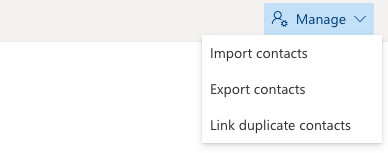
- Locate the Manage menu in the top-right corner of the interface.
- Select Export contacts from the dropdown options.
- Choose the specific folder you wish to export, then click the Export button to initiate the download of your CSV file.
Preparing for the Import
Before you jump into the import, take a moment to review the CSV file. You can open this file in spreadsheet software like Excel or Google Sheets to ensure the columns—such as First Name, Last Name, and Email—are correctly labeled. If the headers are messy, Google might struggle to map the data correctly. A quick glance at the file structure can save you significant time during the import process by allowing you to fix any formatting errors before they become part of your Google address book.
The Import Process
- Sign in to your Google Contacts dashboard.
- Select the Import option found on the left-hand navigation sidebar.
- Upload the CSV file you previously saved from Outlook.
- Click Import to finalize the integration of your contacts into the Google ecosystem.
Troubleshooting Common Import Issues
Sometimes, specific fields may not map perfectly during the import. If you notice that job titles or physical addresses are missing, check the “Labels” feature in Google Contacts. You can create a label specifically for the imported batch, such as “Outlook_Import_Date,” which allows you to easily isolate these entries if you need to delete or re-import them later. This level of organization ensures that your migration remains tidy and manageable.
Moving Data from Google Contacts to Outlook
There are instances where you might need to perform the reverse operation, moving your Google-based contacts into the Outlook environment. The logic remains consistent: you extract a CSV file from the source and feed it into the destination. This is particularly useful for teams transitioning their primary communication tools or consolidating legacy accounts.
Exporting from Google
- Open your Google Contacts page and click the Export button in the sidebar.
- Filter your selection to include the specific contacts or groups you intend to move.
- Select the Outlook CSV format to ensure maximum compatibility with the destination software.
- Click Export to save the file to your local machine.
Importing to Outlook
- Open the People tab within Outlook Web.
- Access the Manage menu and select Import contacts.
- Upload the CSV file generated by Google and confirm the import.
Managing Large Datasets
If you are moving thousands of contacts, consider performing the import in smaller batches. Outlook occasionally hits processing limits when importing massive CSV files, which can lead to incomplete data transfers or timeout errors. By splitting your contact list into smaller chunks—perhaps by alphabetical order or by specific contact labels—you reduce the burden on the server and ensure that every entry is captured accurately.
Centralizing Your Database for Better Results
Consolidating your contact management into a single, well-maintained database is a foundational element of effective relationship management. When your contacts are scattered across different platforms, you risk losing visibility into your communication history and may struggle to keep information updated. A centralized approach prevents the duplication of effort and ensures that your outreach remains consistent and professional.
The Value of a Single Source of Truth
Beyond simply avoiding data silos, keeping your contacts in one place makes it significantly easier to manage email campaigns or follow up on leads. When every member of your network is accounted for, you reduce the likelihood of missing a critical touchpoint. This clarity in your database is often the difference between a stalled conversation and a closed deal.
Transitioning to Automated Sync
While the manual import and export process is a helpful baseline, many organizations eventually look toward automated syncing solutions as their contact lists grow in complexity and size. Automated tools can provide real-time updates, ensuring that a change made to a contact in Outlook is reflected in Google within seconds. However, these tools often require administrative permissions and subscription costs. For now, mastering these manual exports provides the control you need to keep your professional network aligned with your current workflow without the need for additional software investments.
Maintaining Long-Term Hygiene
Once your contacts are centralized, the work is not finished. Set a recurring reminder to review your contact list for outdated entries. Remove contacts that are no longer relevant, update phone numbers, and ensure that your primary list remains accurate. By treating your contact database as a living asset rather than a static file, you ensure that your professional network remains a powerful tool for your career growth and daily productivity.





