An HTTP 500 internal server error is a general status code indicating that something has gone wrong on the website’s server, though the server is unable to specify the exact nature of the problem. When you encounter this error, it means the server has hit an unexpected condition that prevents it from fulfilling your request. Unlike specific codes that point to a clear culprit, the 500 error is a catch-all, making it one of the more frustrating obstacles for site owners and visitors alike.

Understanding why this happens is the first step toward resolution. Because the error originates on the server side, it is entirely independent of your local browser, computer, or internet connection. It is the server’s way of signaling that it cannot process the request, often due to a configuration issue, a temporary glitch in the code, or an overload of resources. For businesses relying on consistent uptime for visibility in search, resolving these errors quickly is essential to maintaining performance and user trust.
When a server encounters this state, it essentially stops processing the request to prevent further corruption or data loss. This behavior acts as a safety mechanism, but it leaves the end-user with a blank screen or a generic error page. Because the server cannot provide a specific diagnostic message, developers must look at secondary indicators to determine what went wrong.
Common Causes of Server-Side Failures
Identifying the root cause often requires looking at the server environment rather than the frontend display. While the error message is vague, the underlying issues usually fall into a few specific categories that developers and administrators can investigate.
Configuration and Permission Conflicts
A .htaccess file is a critical configuration file used by many web servers to manage directory-level instructions. If this file contains incorrect syntax or is corrupted during a plugin update, it can trigger an immediate 500 error. Because this file controls how the server handles requests, even a single misplaced character can cause the entire site to fail.
Improper file permissions—where the server lacks the necessary authority to read or execute a script—will often result in the same failure. Web servers require specific permission levels for different types of files; if these are set too restrictively, the server cannot access the files needed to render the page, leading to a server-side error. These issues are common when moving files or updating server environments.
Resource and Script Limitations
Many websites rely on PHP, a server-side scripting language, to manage content and databases. Every PHP process consumes a specific amount of memory. If a site exceeds its allocated memory limit or if a script times out before completing its task, the server will terminate the process and return a 500 error. This is common on shared hosting plans where resources are capped.
Poorly coded third-party plugins or themes can introduce bugs that conflict with your core software, creating a bottleneck that the server cannot resolve. When these scripts attempt to run simultaneously, they may cause a resource spike that exceeds the server’s capacity. Monitoring your resource usage over time can help identify patterns that lead to these failures.
Practical Considerations for Prevention
To prevent these issues, maintain a regular schedule of updates for all software components. Keeping plugins and themes current ensures they are compatible with the latest PHP versions. Additionally, ensure your hosting environment has enough headroom to handle traffic spikes, which can prevent the memory-related failures that often trigger these errors.
Immediate Steps for Visitors
If you are a visitor encountering this error on a site you do not manage, your options are limited to waiting or checking the site’s status. Since the issue is internal to the server, there is little you can do on your end to force a connection.
- Refresh the page: Sometimes, the error is a temporary glitch that resolves itself with a second attempt.
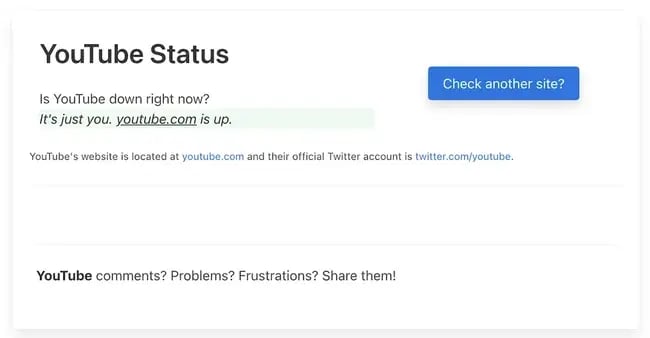
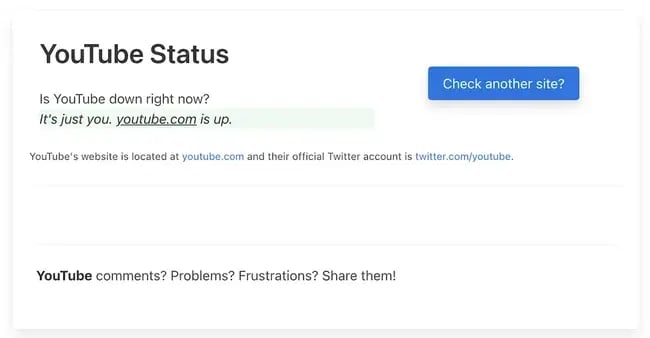
- Check external status tools: Use a service like downforeveryoneorjustme.com to verify if the site is down globally or just for you.
- Clear browser data: While rare, cached cookies associated with the site might occasionally cause conflicts, though this is seldom the primary cause of a 500 error.
Visitors should understand that this error is not their fault. It is a server-side error, meaning the problem exists on the host’s end. Repeatedly refreshing the page in short intervals is discouraged, as it can put additional strain on an already struggling server.
Troubleshooting for Website Owners
When the error occurs on your own property, you must take a systematic approach to isolate the problem. The goal is to identify which component—a plugin, a configuration file, or a memory limit—is failing.
Isolating Plugins and Themes
If you have recently installed a new plugin or updated a theme, it is the most likely source of the conflict. For WordPress users, the most effective method is to deactivate all plugins and then reactivate them one by one. If the site comes back online after deactivating a specific plugin, you have found the culprit. The same logic applies to themes; reverting to a default theme can help determine if your current design is the cause of the instability.
When testing, always ensure you have a backup of your site. If a plugin is causing a critical failure, you may need to rename the plugin folder via FTP to force deactivation. This gives you a way to regain access to your dashboard even if the site is completely inaccessible.
Debugging and Server Logs
If disabling extensions does not work, you should enable debugging. Tools like the WP Debugging plugin allow you to see the exact error message that the server is trying to hide. These logs provide a roadmap to the specific line of code causing the failure. Without these logs, you are essentially guessing, which is inefficient and time-consuming.
Server logs are usually located in the root directory of your site. Look for files named “error_log” or similar. These files contain a timestamped history of every failure the server has recorded. Analyzing these logs is the most professional way to handle website troubleshooting, as it moves the process from trial-and-error to data-driven resolution.
Verifying PHP and .htaccess
Check your server logs for signs of memory exhaustion. If you suspect a memory limit issue, you may need to increase the PHP memory limit in your configuration files. This is typically done by editing the php.ini file or adding a line to your wp-config.php file.
Simultaneously, verify that your .htaccess file is clean. If you are unsure about the file’s integrity, you can temporarily rename it and see if the site loads. If it does, the .htaccess file was corrupted and needs to be regenerated. Many platforms allow you to regenerate this file through the admin settings, which is safer than editing it manually if you are not experienced with server configuration.
| Potential Cause | Recommended Action |
|---|---|
| Faulty Plugin | Deactivate and test individually |
| Memory Limit | Increase PHP memory allocation |
| Corrupt .htaccess | Generate a fresh copy |
| Permission Error | Correct file/folder permissions |
Finally, if these steps do not yield results, contact your hosting provider. They have access to the deep-level server logs that are often hidden from users. They can confirm if there is a wider hardware issue or a configuration error at the server level that is beyond your control. Addressing these errors promptly is vital, as persistent server issues can hinder your site’s ability to be indexed and understood by search engines, potentially impacting your long-term visibility.





